
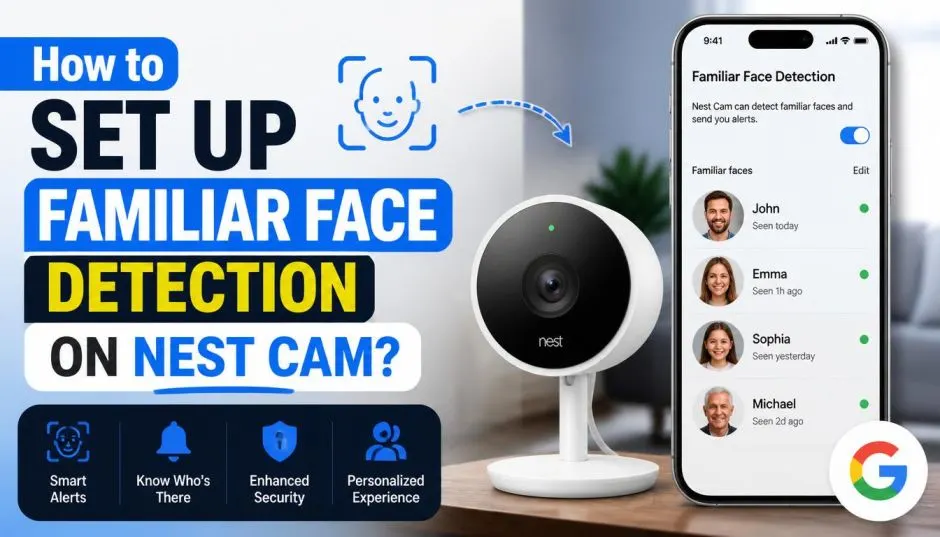
I remember the first time my Nest Cam sent me an alert saying, "Unfamiliar face detected." My heart jumped. I was at work, miles away from home. I opened the app and saw a stranger walking up my driveway.
If you are trying to set up familiar face detection on your Nest Cam, you have come to the right place. I will walk you through everything I learned.
Here is how I set it up. What I learned. And what you need to know.
What You Need Before You Start?
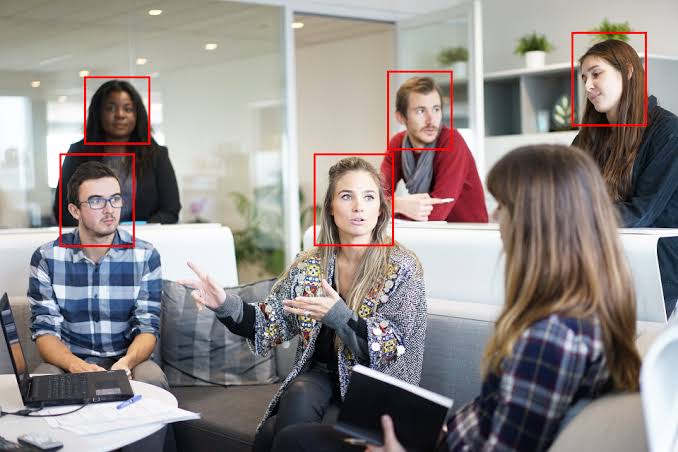
Before you start, you need a few things in place. I learned this the hard way when I spent twenty minutes looking for settings that did not exist.
The Subscription
You need a Nest Aware subscription. This is not optional. Familiar face detection is a premium feature. It does not come with the camera itself.
Related Article: How to Set Up and Optimize Familiar Face Detection on Nest Doorbells?
If you are on a free trial, you can use the feature during that period. But once it ends, you lose access. I almost canceled my subscription once. Then I realized how much I relied on the face detection. I kept it.
Compatible Cameras
Not every Nest camera supports familiar face detection. The feature is available on Nest Cameras and Nest Doorbells. But there is one exception. The Nest Hub Max does not support it. It has Face Match for its own screen, but not familiar face detection for your cameras.
If you are setting up a new camera and do not see the option, check if your model is supported. I made this mistake with an older camera. I spent an hour trying to find the setting before I realized my camera was not compatible.
Location Matters
This surprised me. Familiar face detection is disabled in Illinois. Due to local laws, the feature is not available there. If you live in Illinois, you cannot turn it on.
How I Turned It On?
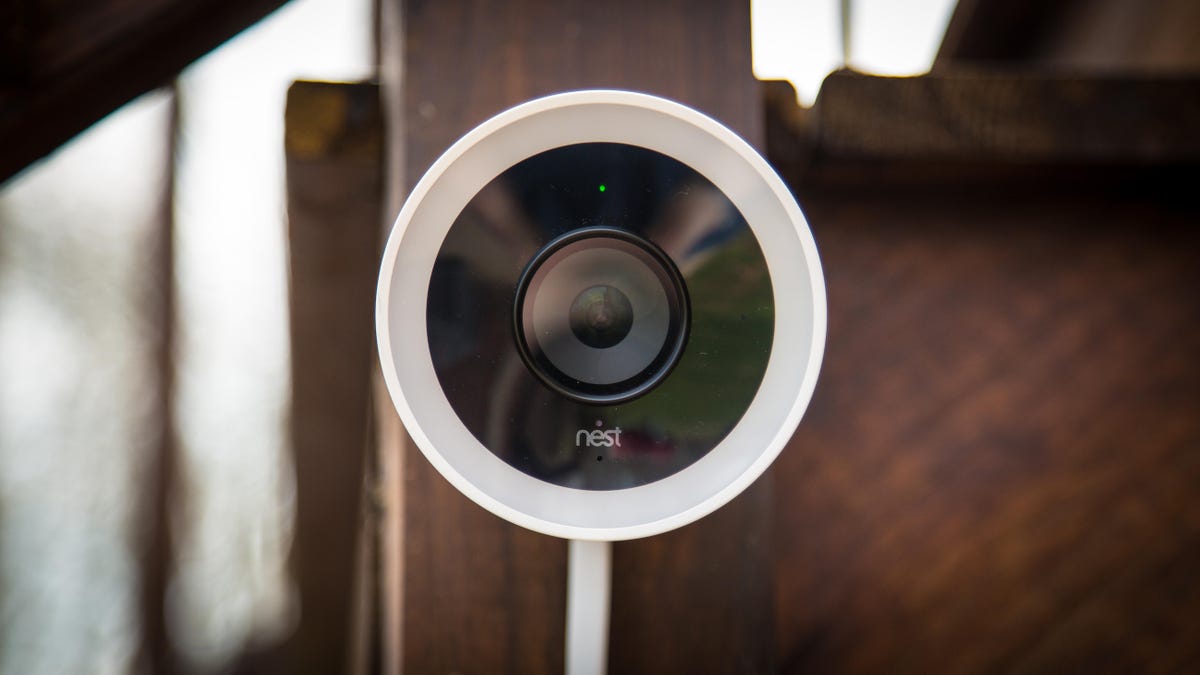
The setup process is straightforward. I used the Google Home app because that is where I manage my newer cameras.
Using the Google Home App
This is the method I use.
Open the Google Home app on your phone. Tap the gear icon in the bottom right corner. That takes you to Settings. Tap Subscriptions. Then select Nest Aware.
You Must Also Like: How to Set Up a Google Home Security System?
From there, tap Familiar face detection. You will see a list of your cameras. Turn it on for each camera you want to use.
If you have more than one camera, you need to do this individually. I have three cameras. I turned it on for the front door and the driveway. I left it off for the backyard.
Using the Nest App
If you are using an older Nest camera or prefer the Nest app, the process is slightly different.
Open the Nest app. Tap Settings. Select Familiar faces. Then turn it on for each camera.
What Happens Next?
Once you turn on the feature, your camera starts learning. Whenever it detects a face, it marks the activity in your recorded video.
This is how your camera learns. Over time, facial recognition becomes more accurate. I had to name my wife, my kids, and my neighbor. Now the camera knows all of them.
Managing the Face Library
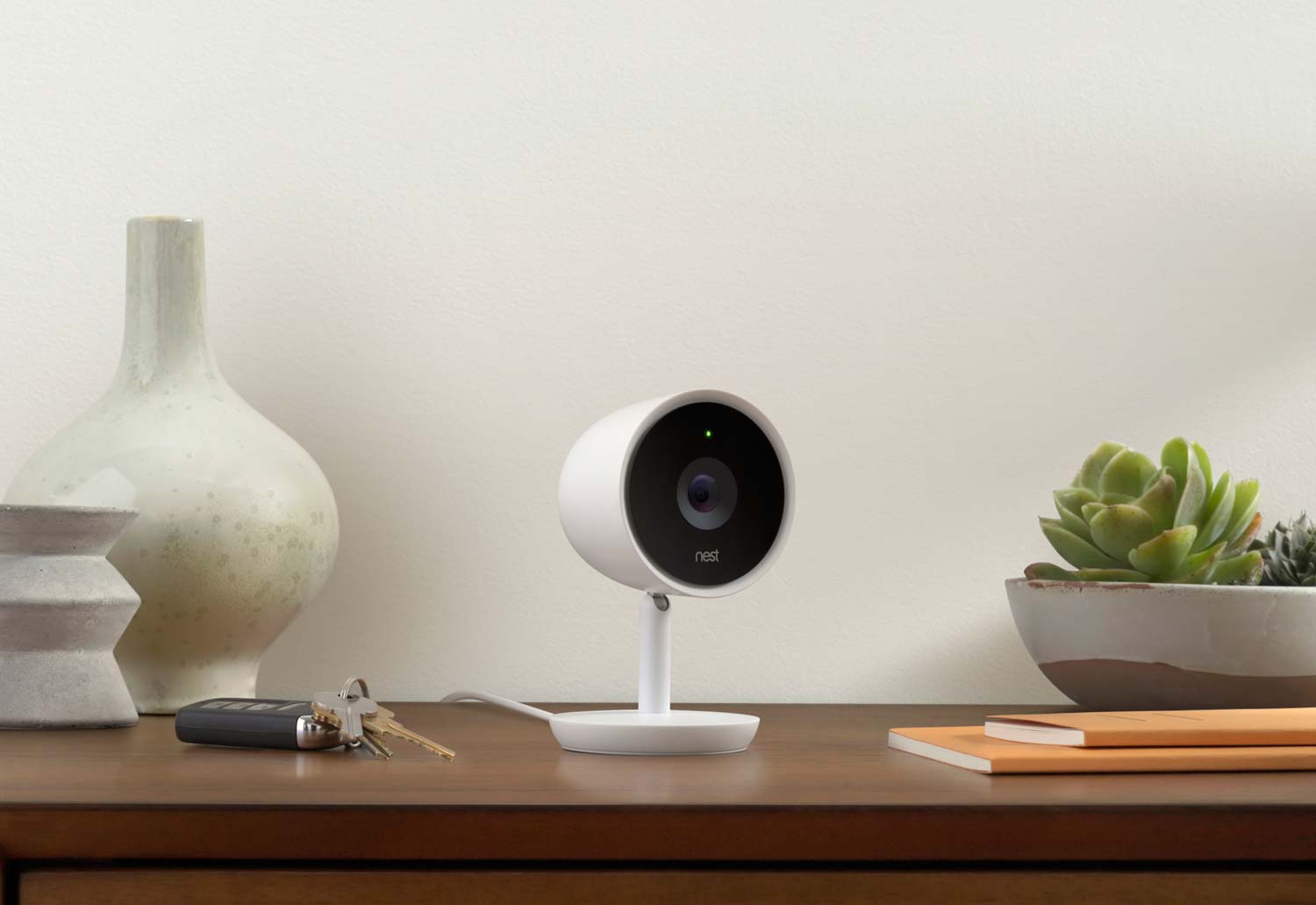
The face library is where everything comes together. This is where you organize the faces your camera has detected.
Adding a Name
When your camera detects a new face, you can name it.
Open the Google Home app. Tap Settings > Nest Aware > Familiar face detection. Tap a face. Enter a new name.
I did this for my mailman. Now when he walks up, the camera knows who it is.
Combining Duplicate Profiles
Sometimes your camera creates two profiles for the same person. This happened with my wife. The camera created one profile for her with glasses and another without.
You can merge them.
Open the Google Home app. Tap Settings > Nest Aware > Familiar face detection. Tap Edit in the top right. Select the faces you want to merge.
It takes a few seconds. Then the profiles are combined.
Deleting Bad Photos
Your camera will occasionally save a bad photo. Blurry faces. Pictures of people on your TV. Photos of your kids running past the camera.
You can delete these snapshots to keep your library clean.
Open the Google Home app. Tap Settings > Nest Aware > Familiar face detection. Select a face profile. Tap Edit and select the photos you want to delete. Then tap Delete.
What Changed in 2026?
Google updated familiar face detection in 2026. I noticed the improvements right away.
Thumbs Up and Thumbs Down
You can now give feedback on face detection. When your camera sends you a preview, you can tap thumbs up or thumbs down. This helps Google improve accuracy.
I use this feature all the time. If the camera identifies someone correctly, I give it a thumbs up. If it gets it wrong, I give a thumbs down.
Automatic Library Cleanup
The face library now automatically excludes low-quality examples. Blurry faces, ghosted images, non-frontal faces, and small faces are all filtered out.
This saves me time. I used to manually delete bad photos. Now the system does it for me.
Better Detection with Clothing
For Advanced plan users, the system now uses additional signals like clothing when a face is not fully visible. This is useful when someone is wearing a hat or looking away.
More Accurate Examples
The system now automatically updates your familiar face library to save the most recent and accurate examples. I have noticed fewer missed identifications since this update.
Troubleshooting
Not everything always works perfectly. Here are some common issues I have run into.
The Option Is Not Showing Up
If you do not see the familiar face detection option, check a few things.
First, make sure your Nest Aware subscription is active. If it expired, you lose access to the feature.
Second, check if your camera is compatible. The Nest Hub Max does not support this feature.
Third, check your location. The feature is not available in Illinois.
Wrong Identification
Sometimes your camera confuses a picture with a real person. Sometimes it mistakes close relatives for each other.
If this happens, delete the incorrect snapshots from the face profile. This reduces the chance of that person being misidentified again.
Duplicate Profiles
Your camera might misidentify a familiar face as a new face and create another profile. This happens more often than you would think.
The fix is simple. Merge the profiles.
Tips That Helped Me
I have learned a few things that make the feature work better.
Position your camera well. The feature works best when the subject is directly approaching the camera. My front door camera is mounted at eye level. It works perfectly.
Ensure good lighting. The camera needs to see faces clearly. Avoid backlighting and shadows.
Be patient. The system learns over time. The more it sees a face, the better it gets at recognizing it.
Give feedback. Use the thumbs up and thumbs down buttons. It helps improve accuracy for everyone.
Privacy and Legality
This is important. Familiar face detection involves storing face data. Google takes privacy seriously.
Newer Nest cameras store familiar face data locally in the camera's internal memory. The data is encrypted. Older cameras store it in the cloud, also encrypted.
The Final Thoughts
Setting up familiar face detection on your Nest Cam is straightforward. You need a Nest Aware subscription and a compatible camera. The setup takes a few minutes.
Once it is running, the camera learns over time. It gets better at recognizing the people you know. It alerts you when it sees someone unfamiliar.
The 2026 updates have made the feature more reliable. Automatic library cleanup. Thumbs up and thumbs down feedback. Better detection with clothing.
It is not perfect. Sometimes it makes mistakes. But you can fix those mistakes by managing your face library. Delete incorrect snapshots. Merge duplicate profiles. Give feedback.