
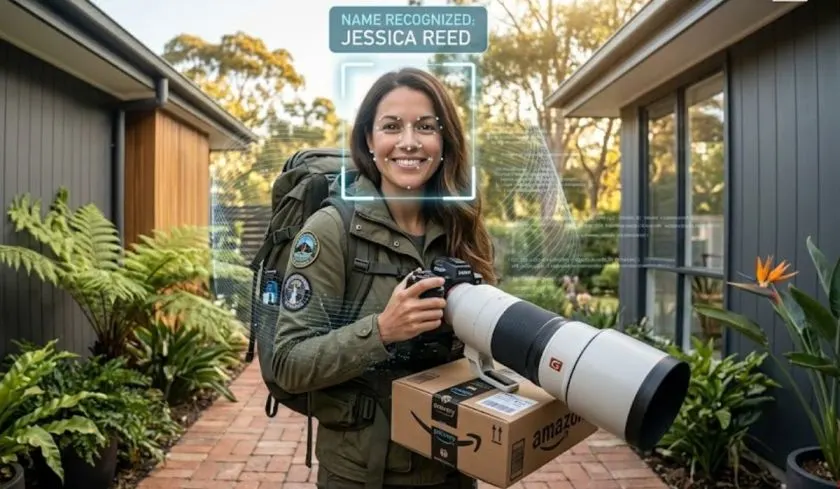
You just installed your Nest Doorbell. You paid for Nest Aware (now Google Home Premium). You turned on Familiar Face Detection. Or worse, it called your mailman your brother-in-law.
I have been there. For years, this feature felt broken. But Google quietly pushed major updates in May 2026. After resetting my library twice and testing the new tools, I finally have a system that works.
Here is exactly how to set up your Nest Cam Familiar Faces setup the right way, fix common mistakes, and use the new AI upgrades to stop false alerts.
How to Set Up and Optimize Familiar Face Detection?
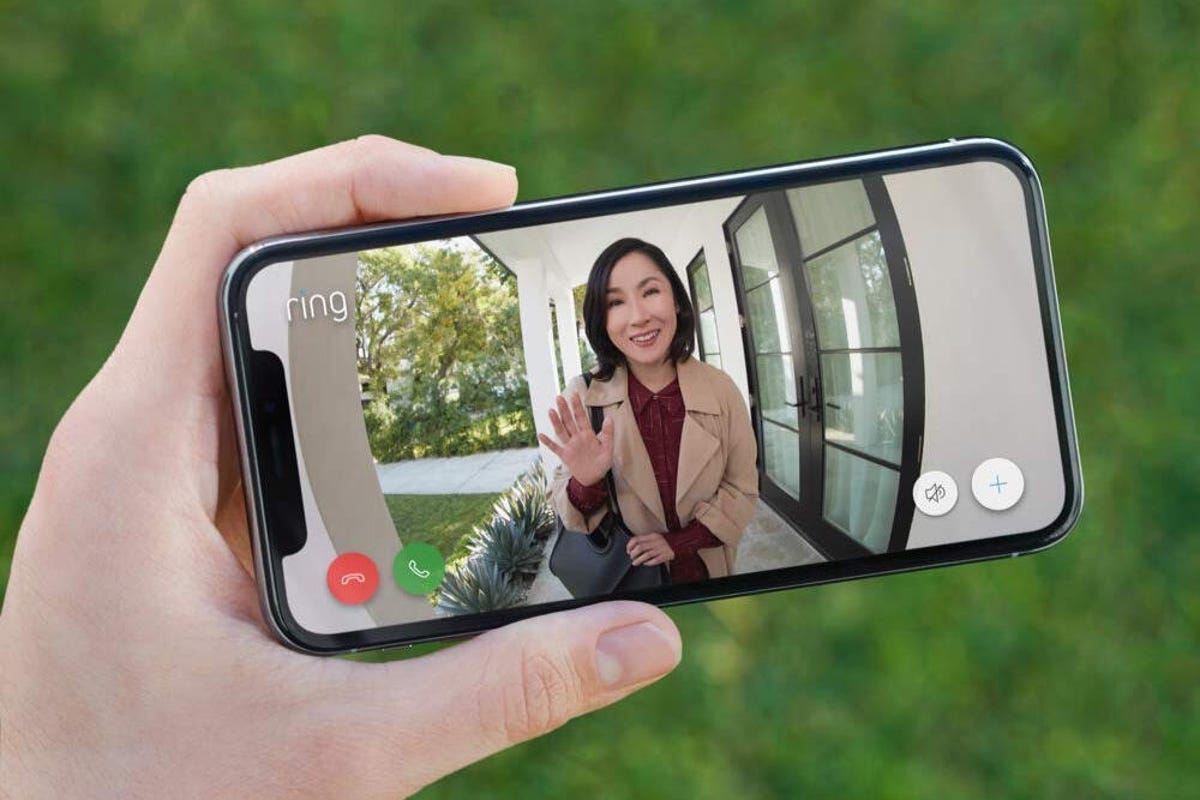
Most people skip these steps. Then they blame the camera.
First, you need a subscription. Familiar face detection does not work without Google Home Premium (formerly Nest Aware). No trial mode. No workaround. Just pay for it.
Read Also: Matter Compatible Devices for Google Home Android Guide
Second, check your location. If you live in Illinois, the feature is disabled by state law. Google blocks it entirely. You cannot turn it on.
Third, understand what it actually does. This is not a security feature for unlocking doors. It simply tells you who is at the door. “Mom is here.” Not “Mom is authorized to enter.”
Step-by-Step: Enabling Familiar Faces in the Google Home App
Google migrated everything from the old Nest app to Google Home. If you still use the Nest app, switch now. The new interface is better.
Step 1: Open the Google Home app.
Step 2: Tap your Profile picture (top right) > Home settings.
Step 3: Tap Subscriptions > Google Home Premium > Familiar face detection.
Step 4: Toggle it ON for each camera individually. Yes, each camera. One setting does not apply to all.
That is the easy part. The hard part starts now.
The First 48 Hours: Training Your Camera
Your camera knows nothing about your family. Zero. You have to teach it.
How training works: When your camera sees a face it does not recognize, the app asks, “Do you know this person?”. You tap YES, type a name, and save the snapshot to your Familiar Face Library.
My advice for the first two days: Manually review every single face alert. Do not swipe them away. Do not ignore them. Each YES trains the model. Each NO tells it what not to learn.
What I learned the hard way: The camera needs multiple angles of the same face. My wife walks to the door facing down at her phone. The first five snapshots were the top of her head. No face. The camera never learned her. I had to manually add better photos from the library.
Where to Mount Your Doorbell (Most People Get This Wrong)?
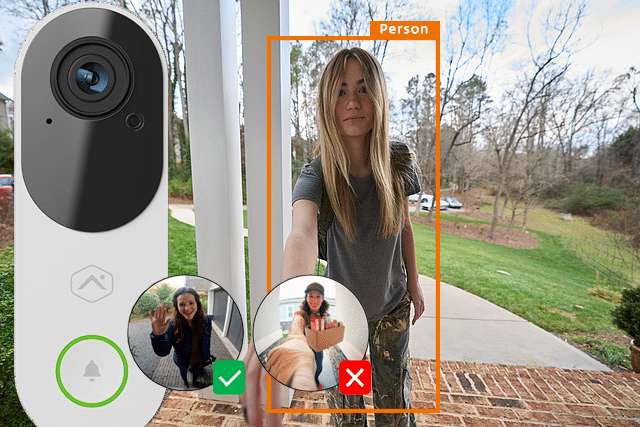
Placement determines success more than any setting. Google has specific requirements.
You Must Also Like: How to Set Up a Google Home Security System?
Height: Doorbell at 4 feet (122 cm) above ground. Cameras at 6-8 feet (183-244 cm).
Distance: Within 10 feet (3 meters) of where people walk . Any farther, and the face is too small for accurate recognition.
Angle: The subject should walk directly toward the camera. Not across it. Not away from it.
My mistake: I mounted my doorbell at 5.5 feet. Too high. Every face was angled down. The camera saw nostrils, not eyes. I moved it to 4 feet. Recognition improved overnight.
Check for glare. Look at your camera view at 8 AM, noon, and 4 PM. Sun glare blinds the sensor. Adjust your camera angle or install a shade.
What Changed (And Why It Matters Now)
Google pushed two major fixes in early May 2026. This is why I am writing this guide now .
Change one: Thumbs up / down buttons. You can now rate every face preview. “That is correct” or “That is wrong.” Over time, your feedback teaches the system. Google claims accuracy improves the more you use it.
Change two: Auto-filtering bad photos. The system now automatically throws out blurry, ghosted, non-frontal, or tiny faces . Your face library stays clean. You do not have to manually delete garbage snapshots anymore.
What this means for you: The old system required constant manual cleanup. The new system learns from your feedback. Use the thumbs buttons. They actually work now.
Caveat from real users: Long-time Nest owners report the feature still feels “messy”. The bar was very low. These updates help, but do not expect perfection overnight.
How to Clean Up Your Face Library (The Right Way)?
If your camera has been running for weeks with wrong identifications, your library is polluted. Bad data in. Bad recognition out. Here is how to fix it.
To delete incorrect photos (Home app):
-
Settings > Nest Aware > Familiar face detection
-
Select the face profile with wrong photos
-
Tap Edit > select bad photos > Delete
To move a photo to the correct person:
-
Same path: Settings > Familiar face detection
-
Select the profile with the misplaced photo
-
Tap Edit > select the photo > Move
-
Search for the correct person or type a new name
To merge duplicate profiles of the same person:
-
In Familiar face detection, tap Edit (or touch and hold a face)
-
Select both duplicate profiles
-
Tap Merge at the top right
How often to do this: Once per week for the first month. Then once per month after that. Do not let bad data accumulate.
Nest Familiar Faces Not Working? Try These Fixes
I have debugged this feature more times than I want to admit. Here is my checklist.
Problem: Camera detects people but not faces
-
Fix: Enable familiar face detection for that specific camera (separate toggle per camera)
-
Fix: Check mounting height and distance (4 feet, within 10 feet)
Problem: Wrong person identified
-
Fix: Delete the incorrect snapshot from their profile immediately
-
Fix: Use the new thumbs down button on the notification
Problem: Duplicate profiles for same person
-
Fix: Merge them using the Merge button
Problem: Face library completely missing
-
Fix: Your subscription expired. Renew Google Home Premium.
Problem: Cannot change any settings
-
Fix: You are under 13 years old (age restriction) or live in Illinois.
Problem: Notifications not sending
-
Fix: Check that People notifications are turned ON in Settings > Notifications > [Your Camera].
Problem: Camera confuses family members who look alike
-
Partial fix: This is a known limitation. Close relatives are hard for any facial recognition system . Add more distinct photos of each person from different angles.
Face Match Vs Familiar Face Detection: Do Not Confuse Them
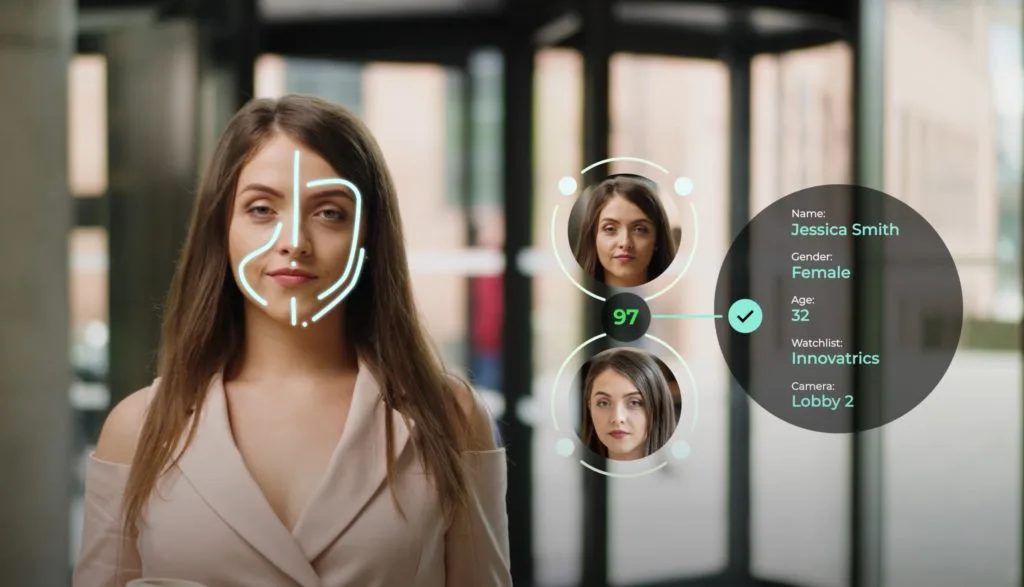
Google has two similar-sounding features. They do different things.
Familiar Face Detection works on Nest Doorbells and Cameras. It identifies visitors and sends notifications to your phone.
Face Match works only on Nest Hub Max (the smart display). It shows personalized content like your calendar when you walk by.
You cannot use Face Match on a doorbell. You cannot use Familiar Face Detection on a Hub Max (for personalization). Different products. Different purposes.
Face Match requires Voice Match first. Set up Voice Match, then enable Face Match in Settings > Google Assistant > Face Match.
Look and Talk is another Nest Hub Max feature. Look at the camera within 5 feet, and Google Assistant listens without saying “Hey Google”. It uses Face Match to know who you are.
Privacy and Legal Considerations
This matters more than most people think.
Consent laws: Depending on where you live, you may need consent from visitors before your camera identifies them. Check local laws.
Data retention: Your face model is stored on Google’s servers. You can delete enrollment images at myactivity.google.com.
Illinois residents: Biometric Information Privacy Act (BIPA) blocks this feature entirely. Google disables it at the state level.
My advice: Add a small sign near your doorbell. “Video recording and facial recognition in use.” Covers your legal bases. Builds trust with visitors.
My Final Setup Checklist
Print this. Follow it in order.
-
Subscribe to Google Home Premium (Nest Aware)
-
Verify you are not in Illinois or under age 13
-
Mount doorbell at exactly 4 feet height, within 10 feet of walking path
-
Check for glare at different times of day
-
Enable Familiar Face Detection for each camera individually
-
For the first week: Manually review every face alert. Tag each one.
-
Use thumbs up/down buttons on every notification
-
Weekly: Review face library, delete bad photos, merge duplicates
-
Monthly: Check mounting position as seasons change (sun angle shifts)
The system is not perfect. Long-time users will tell you it has been frustrating for years. But the May 2026 updates finally add the feedback tools and auto-filtering that should have been there from the start.
Give it two weeks of consistent training. You will stop getting “Unknown person” alerts for your spouse. And that alone is worth the setup time.