
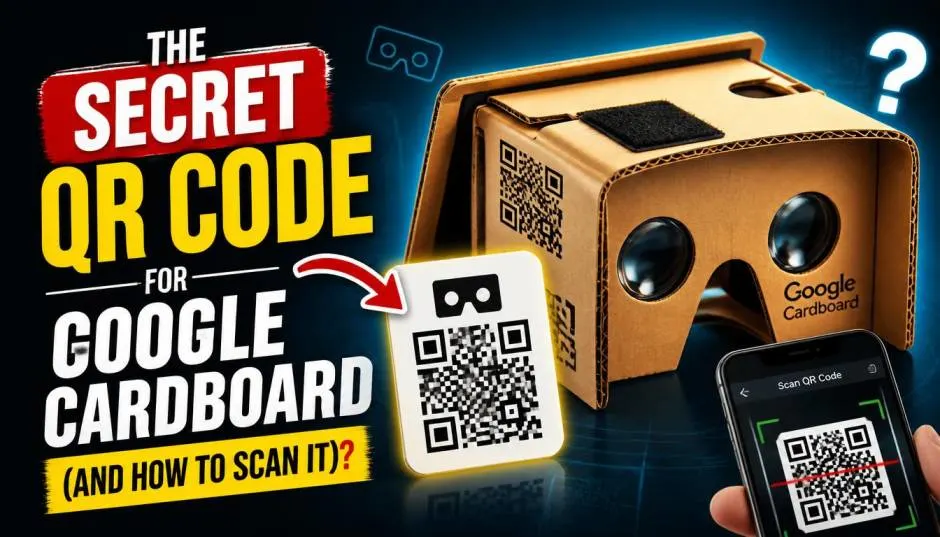
The QR Code for Google Cardboard is a simple setup step that most people overlook. It tells your phone exactly how to adjust the screen for your specific viewer. Without it, the image looks blurry. With the right code, everything snaps into focus.
I've set up a few Cardboard viewers over the years. The first time, I skipped the QR code entirely. The result was a headache-inducing mess. The second time, I scanned the code properly. The difference was night and day.
Here's how it works. What to do if your viewer lacks a code. And how to generate one yourself.
What the QR Code Actually Does?
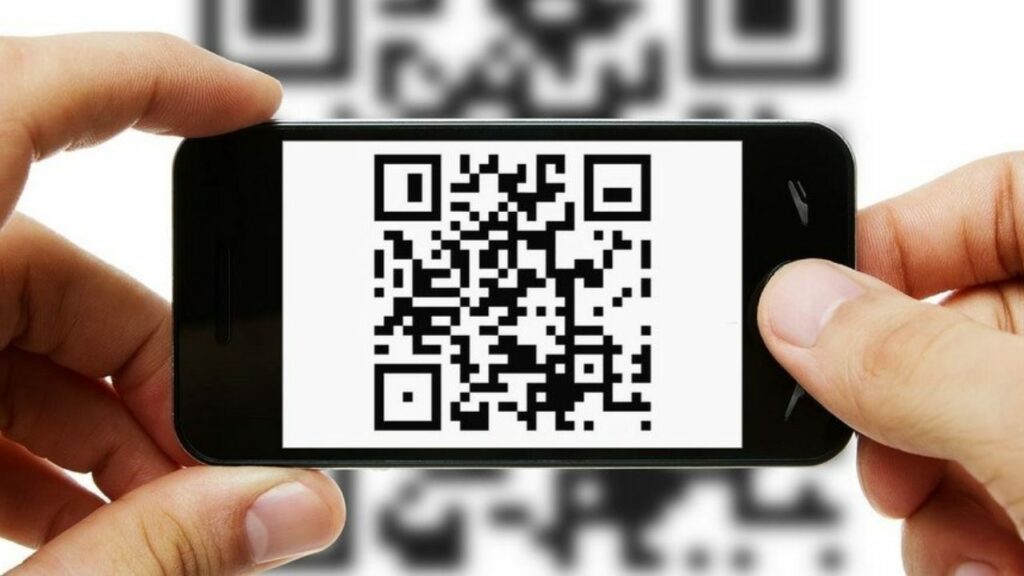
The QR code stores your viewer's calibration data. Lens distance. Screen-to-lens distance. Distortion values. Your phone reads this data and adjusts the image for each eye.
Read Also: Google Cardboard With iPhone: Setup And How It Works?
Every Cardboard viewer has slightly different optics. Even cheap ones vary between batches. The QR code tells your phone how to compensate.
Without it, you're guessing. The image might look stretched. The 3D effect might feel off. Eye strain sets in fast.
How to Scan Your Cardboard QR Code?
The process takes about thirty seconds.
Step 1: Open the Google Cardboard app on your phone. You can download it from the Play Store or App Store.
Step 2: Look for the QR code on your viewer. It's usually printed on the cardboard itself. Sometimes it hides under a sleeve or flap. Remove any covering to expose it.
Step 3: Tap the right arrow to start pairing. Your phone's camera opens.
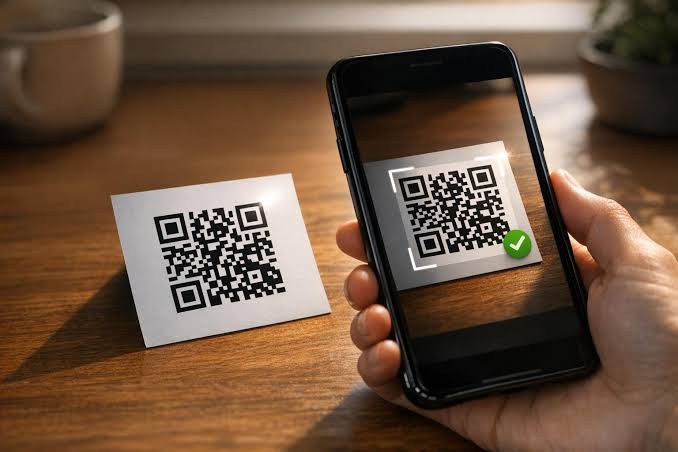
Step 4: Point your camera at the QR code. Hold steady for a moment. The app scans it automatically.
Step 5: The calibration data saves to your phone. Now you're ready to use the viewer.
If the app says "device incompatible," your phone might lack a gyroscope. Cardboard needs that sensor to track head movement.
What If Your Viewer Has No QR Code?
This happens more than you'd think. Some third-party viewers ship without a code. Others lose their code during assembly.
You have options. The official Google configurator no longer works. It's been broken for years . But alternatives exist.
The GitHub Replacement
A developer named zep6yr created a replacement viewer profile generator. It's hosted on GitHub Pages. You can access it directly in your browser.
You Must Also Like: Google Cardboard Virtual Field Trips for Elementary Students
The tool lets you input your viewer's parameters. Lens distance. Screen distance. Field of view. It generates a QR code you can scan.
This is the simplest option for most people. No coding required.
The Console Method
If you're comfortable with browser tools, you can generate a code manually. The process involves opening the old Google configurator page and editing values in your browser's console.
It sounds complicated. It isn't, if you follow the steps carefully. You edit a few parameters. The console spits out a URL. You convert that URL into a QR code using any free generator.
The Stack Overflow thread explaining this method includes the exact code to paste.
The Calibration App Method
Some users download a VR calibration app instead. One option is "VR Calibration for Cardboard." It lets you adjust settings visually and generates a profile.
The app is older. The interface feels dated. But it works.
Understanding the Parameters
If you're generating a custom code, here's what the values mean.
Inter-lens distance: The space between the two lenses. Measured in millimeters. Most Cardboard viewers sit around 60-63mm.
Screen-to-lens distance: How far your phone sits from the lenses. Affects focus and field of view.
Distortion coefficients: Numbers that correct for lens curvature. Prevents the "fish-eye" look.
Field of view: The angle of vision each eye sees. Usually around 40-50 degrees for Cardboard.
You don't need to calculate these manually. Measure your viewer if you can. Otherwise, use typical values for standard Cardboard clones.
When You Need to Change the Code?
Scanned a code but the image looks wrong? You might need a different profile.
Blurry image: The screen-to-lens distance is off. Try adjusting how your phone sits in the viewer. Or generate a code with different values.
Double vision: The inter-lens distance doesn't match your eyes. Some apps let you adjust this manually. Others need a new profile.
Warped edges: The distortion coefficients need tweaking. This is trickier. Try profiles from similar viewer models.
Most Cardboard apps let you rescan or change the viewer profile in settings. Look for "Viewer Profile" or "Cardboard Settings" in the app menu.
Viewer Compatibility Notes
Not all viewers work with all phones. Cardboard officially supports iPhones running iOS 8.0 or higher . Android compatibility varies by device.
Your phone needs a gyroscope. Without it, head tracking won't work. Most mid-range and flagship phones from the last five years have one. Budget phones sometimes skip it.
Screen size matters too. The original Cardboard fits phones up to around 6 inches. Larger phones need bigger viewers.
Apps That Use the QR Code
Most Cardboard-enabled apps read the QR code automatically. The Google Cardboard app saves your profile. Other apps pull that data.
Some apps include their own calibration tools. Snowmobile Cross VR lets players adjust IPD and field of view inside the app. That's rare. Most rely on the system profile.
VR video players like VR Theater for Cardboard work best with a proper QR code scan. The app supports 2D and 3D movies in a virtual cinema.
Common Problems and Fixes
The app won't scan the code. Clean your camera lens. Make sure the QR code isn't damaged or faded. Try scanning in better lighting.
The code scans but nothing changes. Force close the app and reopen it. Some apps cache the old profile.
The image still looks wrong after scanning. Your viewer might need a custom profile. Generate one using the methods above.
No QR code and no internet access. You're stuck without a profile. Try to find a similar viewer model's code. Or use default settings if the app allows it.
A Quick Note on Safety
VR can cause motion sickness. Start with short sessions. Five to ten minutes. Take breaks if you feel dizzy. Clear your play area. Cardboard blocks your vision completely. Stairs, furniture, and pets become hazards.
Don't use VR while walking around. Sit or stand in one spot. The immersive effect can disorient you.
The Final Thoughts
The QR Code for Google Cardboard is a small piece of setup that makes a big difference. It takes thirty seconds to scan. It saves you from blurry images and eye strain.
If your viewer has a code, scan it. If it doesn't, use the GitHub replacement tool. Generate a custom profile. Test it. Adjust until it feels right.
The Cardboard QR code generator alternatives work well enough. You don't need the broken Google configurator. You just need the right parameters and a QR code tool.
Once your profile is saved, you're set. Every Cardboard app will use it. Your VR experience will look the way it should.
Set it up once. Enjoy it for years.