
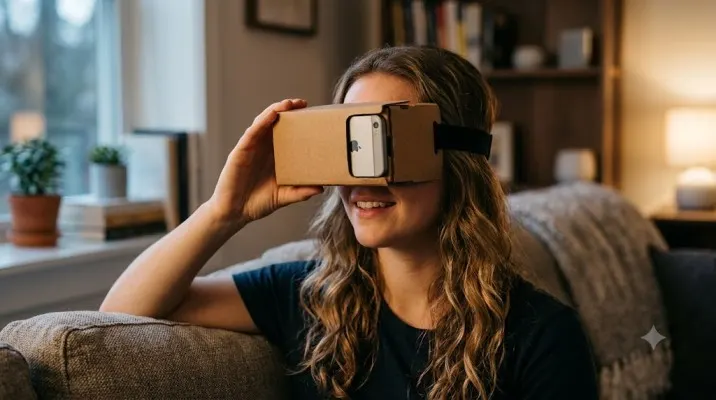
I remember the first time I tried virtual reality on my iPhone. I was skeptical. How could a piece of cardboard turn my phone into a VR headset? But it worked. And it was surprisingly fun.
Google Cardboard is the simplest way to experience VR. It is a foldable cardboard viewer that uses your phone as the screen and lenses. No wires. No expensive hardware. Just your phone and a viewer.
How to Use Google Cardboard with iPhone?
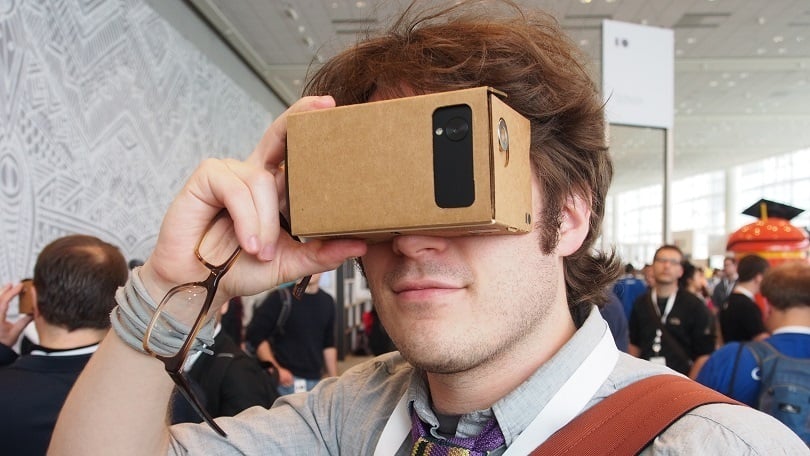
The core idea is simple. Your phone sits inside the viewer. The lenses split the screen into two images. This creates a 3D effect. The app tracks your head movements to let you look around virtual worlds.
Requirements: What You Need?
Your iPhone needs to meet a few basic requirements. It must run iOS 8.0 or higher. The Cardboard app itself requires iOS 15.0 or later.
Read Also: Google Cardboard NFC Tag Not Working on iPhone? Fix It Fast
Your phone must have a gyroscope. This is the sensor that tracks head movement. If your phone does not have one, you will see a device incompatible message.
The app is free. It is available on the App Store. It is about 62.5 MB in size.
Step-By-Step Setup
Here is how to get started. The process is quick and easy.
Get a viewer. You can order a Cardboard viewer online. Many are under $20. You can also make your own. Google provides instructions for building one from scratch .
Download the app. Install the free Google Cardboard app from the App Store. Open it .
Pair your viewer. The app will ask you to pair your phone with the viewer. Tap the right arrow icon. This starts the pairing process .
Scan the QR code. Use your phone's camera to scan the QR code on the viewer. The code is often inside the viewer. You might need to remove the cardboard sleeve to find it .
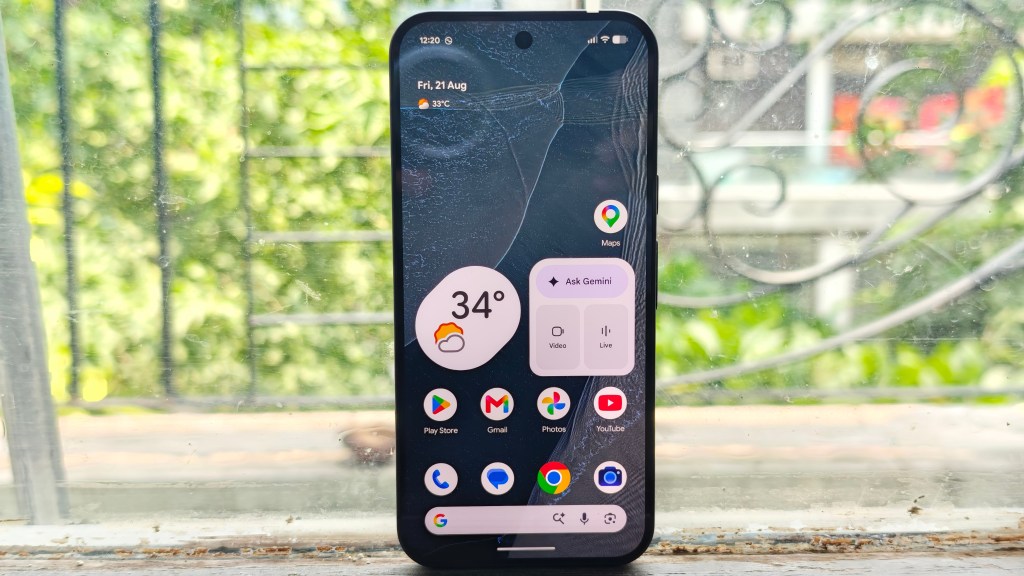
Insert your phone. Open the top flap of the viewer. Lift the side flaps and press them against the fasteners. Place your phone inside. Close the top flap .
Start using Cardboard. Before looking through the viewer, focus on a distant object. This helps your eyes adjust. Close your eyes as you bring the viewer up to your face. Follow the on-screen instructions .
QR Code Issues and Solutions
The QR code is important. It tells the app about your viewer's specifications. This includes lens distance and distortion coefficients. The app uses this data to adjust the image .
You Must Also Like: Google Cardboard Virtual Reality Viewer Guide
Sometimes the QR code does not work. Google's official QR configurator has been broken for some time . This is a known issue.
If you cannot scan the QR code, you have a few options.
Generate a custom QR code. You can use alternative tools. Search for "Viewer Profile Generator" online. These websites can generate the code for you .
One method involves using the Firebase-based generator tool. You can edit the parameters in your browser's console to match your viewer .
Use the developer options. For developers, the Cardboard SDK includes an option to scan a QR code and save device parameters . This is how developers test their own VR headsets.
Check the viewer's website. Many manufacturers provide the QR code on their product page .
What to Expect: Limitations and Safety
Cardboard is an entry-level VR experience. It is not the same as a dedicated headset like the Meta Quest. The resolution depends on your phone's screen. The lenses are simple plastic.
The experience is engaging for short sessions. You can watch 360-degree videos, play simple games, and explore virtual worlds . Many viewers come with a head strap for hands-free use .
Safety is important. Do not use the Cardboard app while driving or walking. It can distract you from real-world situations. Always obey traffic and safety regulations .
The Developer Perspective
For developers, the Cardboard SDK for iOS is a tool for creating VR experiences . The SDK handles head tracking and stereoscopic rendering. It uses the phone's sensors to track head movements. It renders separate images for each eye. It corrects for lens distortion .
The SDK supports iOS 12.0 or higher. It requires Xcode 12.5 or higher and CocoaPods 1.9 or higher . Developers can build their own VR apps using the HelloCardboard demo as a starting point.
Is It Worth It?
For a budget-friendly introduction to virtual reality, Google Cardboard with iPhone is a solid choice. It is cheap, easy to set up, and works with a huge library of apps.
The experience is limited by your phone's hardware, but it is enough to give you a taste of what VR can offer. Just be aware of the QR code pairing issue. Have a backup plan ready in case the official setup process fails.