
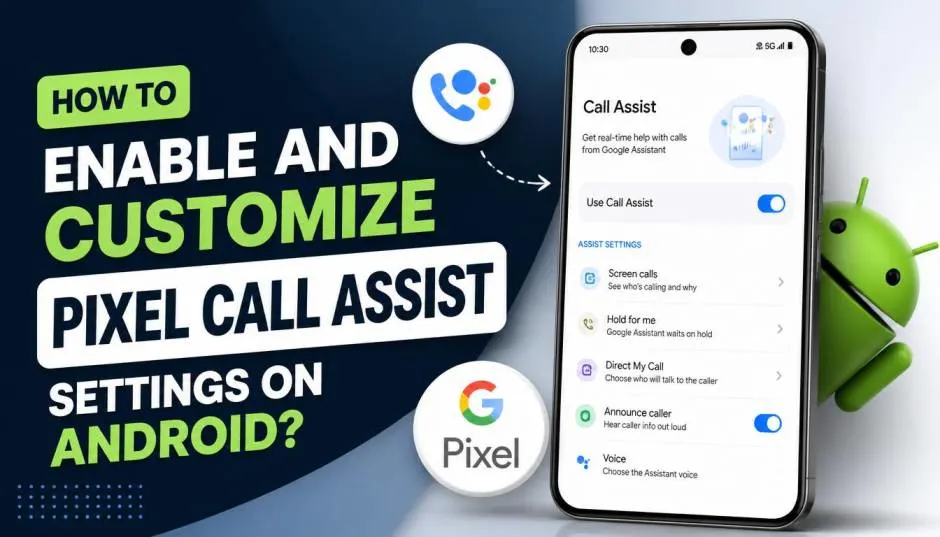
I got my first spam call within hours of setting up my Pixel. That's when I realized Call Screen wasn't just a gimmick. It was the feature I needed most.
The Pixel call assist settings android users love are simple to access. But the real power comes from knowing how to customize them. Let me walk you through exactly how to set this up.
What Is Pixel Call Assist?
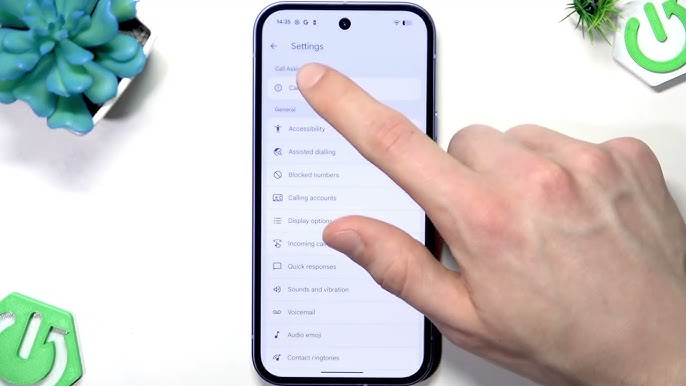
Pixel Call Assist is Google's name for a collection of smart calling features. The star of the show is Call Screen. This feature lets Google Assistant answer unknown calls for you and ask the caller who they are and what they want . It transcribes their responses live on your screen.
Read Also: Google Pixel TSMC Tensor Chip Partnership Explained
Call Screen works on your device and doesn't use Wi-Fi or mobile data . It essentially acts as a digital gatekeeper for incoming calls, helping you avoid spam and robocalls .
With newer Pixel models, the feature got even smarter. AI-powered suggested replies are now generated on your device based on the caller's responses . These replies aren't one-size-fits-all options. They actually make sense for the specific conversation.
Where Is Call Screen Available?
This is where people get confused. Automatic call screening works on all Pixel phones, but only in the United States. Manual call screening is available in more countries:
-
Australia
-
Canada
-
France
-
Germany
-
Ireland
-
Italy
-
Japan
-
Spain
-
United Kingdom
-
United States
India appears on some lists but isn't universally mentioned across all Google support pages . If you're in India and don't see the option, your device or carrier might not support it yet.
Important note: Manual Call Screen only works with a SIM card from a supported country .
How to Enable Pixel Call Assist Settings on Android?
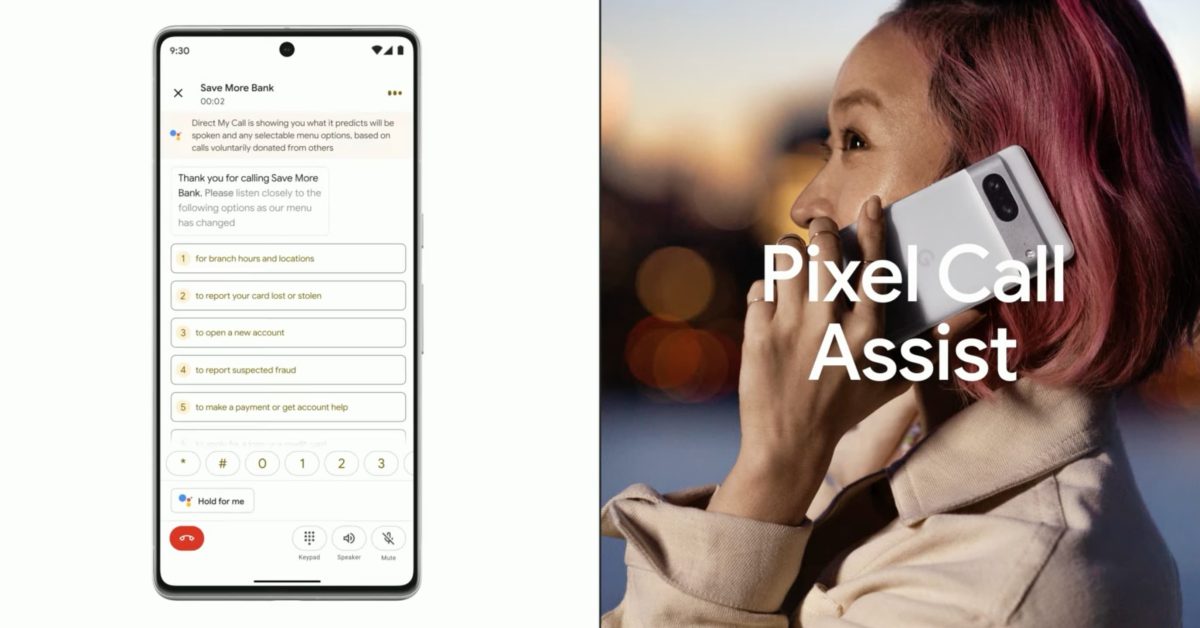
Step 1: Check your Phone app
First, make sure you have the latest version of the Phone app. Go to the Play Store, search for "Google Phone," and tap Update if available .
Step 2: Open Call Screen settings
Open the Phone app. Tap the three dots in the top right corner. Select Settings, then tap Spam and Call Screen or Call Screen .
Step 3: Turn on automatic call screening
Tap Call Screen again. You'll see options for protection levels:
-
Maximum protection: Screens all unknown numbers
-
Medium protection: Screens spam and suspicious numbers
-
Basic protection: Only declines known spam callers
On Pixel 7 and newer devices, you can also turn on automatic screening for specific caller types: Spam, Possibly faked numbers, and First-time callers .
How to Use Call Screen During a Call?
When you receive a call from an unknown number, tap the Screen call button on your screen . Your Call Assist will answer the call and ask who's calling and why.
You Must Also Like: Google Pixel Android Voluntary Exit Program Explained
The transcript appears on your screen in real-time. You can then choose from several options :
-
Is it urgent? : Asks the caller if they need to reach you immediately
-
Report as spam: Hangs up and blocks the number
-
I'll call you back: Politely ends the call
-
I can't understand: Asks the caller to repeat themselves
On newer Pixel models, AI-powered replies appear based on what the caller says .
How to Turn Off Call Screening on Google Pixel?
If the feature isn't working for you, disabling it is simple.
Open the Phone app, go to Settings > Call Screen, and toggle off Automatically screen calls . That's it. Manual call screening will still be available as a button when you receive calls.
Troubleshooting: Pixel Call Screen Not Showing
I've seen this issue pop up in Pixel forums constantly . If Call Screen isn't showing up, try these fixes:
Check your region: Call Screen isn't available everywhere. If your country isn't supported, the feature won't appear .
Update the Phone app: Go to the Play Store and make sure the Google Phone app is updated to the latest version .
Clear app cache and data: Go to Settings > Apps > Phone > Storage & Cache, and tap Clear cache. If that doesn't work, try Clear storage . This won't delete your call history.
Check carrier restrictions: Some carriers block features like Call Screen. If you're on a specific carrier, contact them to confirm .
Force stop the app: Go to Settings > Apps > Phone > Force stop, then reopen the app .
Reinstall Phone app updates: Long press the Phone app icon > App Info > three dots > Uninstall updates. Restart your phone and update the app again .
Check notifications: Make sure the Phone app has proper notification permissions. Go to Settings > Apps > Phone > Notifications and ensure notifications are turned on .
Manual vs Automatic Call Screening
Here's the difference:
Manual Call Screen: Available in more countries. You tap Screen call when you receive a call. The Assistant answers for you. You see the transcript and decide what to do.
Automatic Call Screen: Available in the US. You set protection levels in settings. The system handles calls automatically based on your preferences. For maximum protection, it screens every unknown number.
The automatic option is particularly good for high-volume spam. Manual gives you more control and interaction.
My Experience Using Pixel Call Screen
I've been using Call Screen for almost two years. My work involves answering calls from unknown numbers daily. The feature saves me hours.
What I love: The live transcription is accurate. I can tell within ten seconds if a call is worth my time. Spam calls get weeded out automatically. I haven't answered a spam call in months.
What I don't love: Sometimes the Assistant doesn't activate quickly enough. Calls from doctors or delivery people get screened, and I have to quickly answer before the caller hangs up. On maximum protection, I've missed a few legitimate calls because the caller didn't respond to the Assistant's question.
The sweet spot is medium protection. It catches spam but lets through legitimate numbers.
Final Thoughts on Pixel Call Assist
This is one of the best Pixel features. It saves time, reduces spam, and lets you control your phone experience. If you have a Pixel and live in a supported country, enable it today. Use medium protection to start. Adjust based on your needs.
The feature keeps getting better. Google added next-gen Call Screen to the UK and Japan with the October 2024 Pixel Drop . More countries will likely follow.
Your phone shouldn't control you. Pixel Call Assist helps you control your phone.