
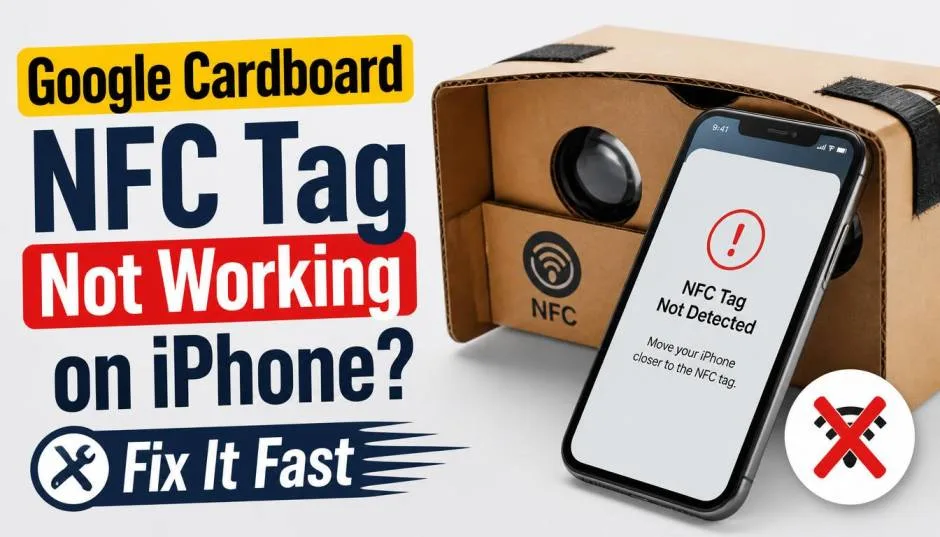
I remember the day I bought my first Google Cardboard. The excitement of trying VR on my phone for the first time. I opened the box, set everything up, and scanned the NFC tag. Nothing happened. I tried again. Still nothing.
I thought my phone was broken. Turns out, it was a common issue.
Google Cardboard uses NFC to trigger a specific action. You tap your phone to the cardboard box, and it opens a VR app automatically. Simple, right? Not always.
I have been through this myself, and I have helped dozens of people fix the same problem. Let me share what I learned.
Why Is My iPhone Not Reading the Google Cardboard NFC Tag?
The short answer is complicated. The long answer is really complicated. But I will break it down.
Read Also: How Does Google Cardboard Work? Everything You Need to Know
iPhone NFC works differently than Android.
Android devices can read NFC tags with the screen off or locked. Apple restricts NFC to specific functions. The reader is only active when certain conditions are met.
The Google Cardboard tag may not be compatible.
Some NFC tags are configured to work with Android-only NDEF records. These tags might not trigger the expected action on an iPhone, even if the phone physically detects them.
Hardware and software compatibility issues are real.
Developers on the Apple Developer Forum have reported persistent NFC communication issues on iPhone 12, 13, 14, and 15 models . The problem appears to be low-level.
The NFC chip or firmware in newer iPhone models has trouble maintaining a stable connection with certain types of NFC tags. One developer described a 90% failure rate when communicating with NXP NTAG 5 chips .
iOS updates can break things.
Several users reported that NFC scanning stopped working entirely after updating to iOS 18 or later . This was widely reported for iPhone 11 and 14 Pro models. If your NFC worked before an update and stopped after, a software glitch is the most likely culprit.
Physical damage is also a possibility.
The NFC antenna on an iPhone sits near the top edge of the device, just behind the rear camera . If you have dropped your phone hard, it may have damaged the internal NFC antenna. Water damage can also cause NFC to fail gradually.
How to Check If NFC Is Working on Your iPhone?
Before you blame the Google Cardboard tag, you need to make sure your iPhone's NFC is working.
You Must Also Like: Google Cardboard Virtual Field Trips for Elementary Students
Try Apple Pay.
This is the easiest test. Go to a store that supports contactless payments and try to pay with Apple Pay. If the terminal recognises your phone, your NFC is fine. The problem is with the tag, not the phone.
Try an NFC Tag Reader App.
Download a free app like NFC Tag Reader or NFC Tools. Use it to read the Google Cardboard tag. If the app shows raw NDEF data, the tag is readable. The problem is that the phone does not know what to do with it.
Use the Shortcuts app to scan for NFC.
Open the Shortcuts app on your iPhone. Create a new automation. Select NFC as the trigger. Scan your tag. If the scan succeeds, your NFC hardware is functional, and you can now program the automation yourself. If it does not, your NFC may be disabled or faulty .
The Most Common Fixes for Google Cardboard NFC Issues
1. Use the Shortcuts App to Build a Manual Trigger
This is the workaround I recommend to most people.
The Shortcuts app lets you create custom automations that trigger when your iPhone scans an NFC tag. This method bypasses the requirement that the tag must be formatted specifically for iOS.
Open the Shortcuts app. Tap Automation, then Create Personal Automation. Scroll down and select NFC. Tap Scan and hold your iPhone near the Google Cardboard tag.
After it is detected, add the action "Open App" and select your VR app. Turn off "Ask Before Running" to make the automation work automatically when you scan.
2. Restart Your iPhone
Sometimes the NFC controller gets stuck. A reboot can fix that.
Press and quickly release the Volume Up button. Press and quickly release the Volume Down button. Press and hold the Side button until you see the Apple logo .
3. Remove Your Phone Case
This one sounds stupid. I have had it work more than once.
Cases with magnetic clasps, metal plates, or thick padding can block the NFC signal . The NFC antenna on an iPhone is at the top edge. A thick case can reduce the signal just enough to cause a failure. Take the case off and try again.
4. Use the Correct Scanning Position
On iPhone 12 and later, the NFC antenna is near the top edge of the device, right behind the rear camera . People often hold the center of the phone against the tag. That will not work. Hold the top of the iPhone directly against the tag.
5. Update iOS to the Latest Version
Apple often ships NFC fixes in minor updates. If iOS 18 broke your NFC, iOS 18.0.1 might have fixed it . Go to Settings, General, Software Update and install any pending updates.
6. Reseat the NFC Connector (Advanced)
This is for the brave. For iPhone SE 2nd gen and other models, a loose connector inside the phone can cause issues . One user reported that carefully reseating the NFC connector after removing the phone's back cover fixed the problem immediately .
I do not recommend this unless you are comfortable opening a phone. If you are not, take it to a repair shop. Tell them to check the NFC antenna connection.
What If Nothing Works?
If you have tried every fix and the Google Cardboard tag still does not work, the tag itself might be faulty or formatted incorrectly for iOS. Some third-party Cardboard clones use cheap, non-standard NFC tags.
Google Cardboard for iPhone relies on a specific NFC tag. It is documented to trigger the correct app if the phone is tapped to the tag. If the tag is dead, you need a new one. If you cannot find one, use the Shortcuts automation as your permanent workaround.
My Personal Thoughts
I have been through this. It is annoying. But it is usually fixable.
The Shortcuts method is the best long-term solution. It puts you in control. You do not rely on Google's tag formatting. You just create your own trigger.
And if your NFC hardware is broken, get it checked. Apple can run remote diagnostics. They can tell you if the problem is hardware or software .
Good luck. And enjoy your VR.