
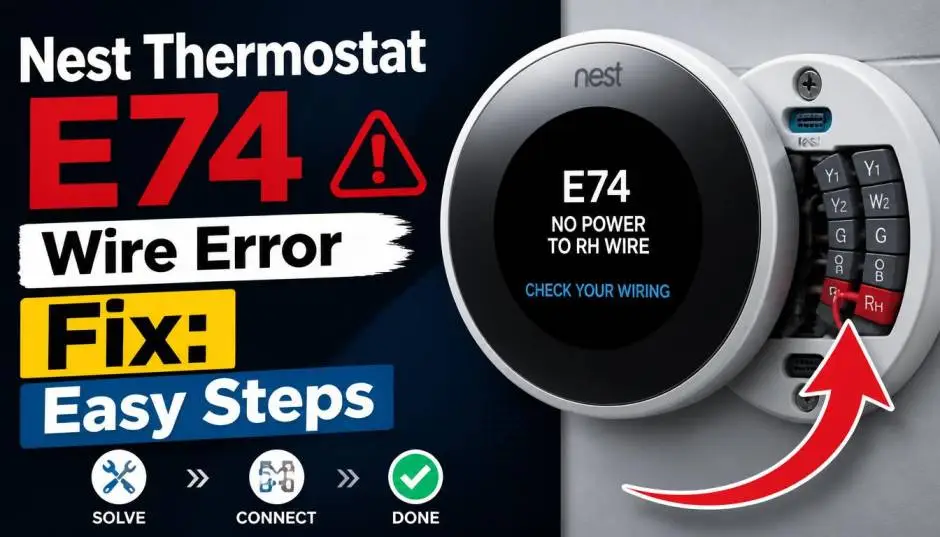
The Nest thermostat E74 wire error fix isn't as complicated as it looks. I've seen this error pop up on my own Nest display during a heatwave last summer. The message read "No power to Rh wire detected." My first thought was panic. My second thought was, "What exactly is an Rh wire?"
The No power to Rh wire Nest E74 error is common. Google's official documentation confirms that E74 is one of several power errors that appear when the heating and cooling system stops sending power to the thermostat.
Nest e74 error intermittent issues are also common, making this problem even trickier. The error code means the Nest thermostat is not detecting the power it needs to operate. The problem is that the loss of power is often not the thermostat's fault.
I'll walk you through the nest e74 wire error fix with simple steps. No technical jargon. Just real fixes that have worked for me and for others in the Nest community.
What Exactly is a Nest E74 Error?
The E74 error code appears when your Nest thermostat does not detect power on the Rh wire. The Rh wire is the heating power wire. It is the wire that provides power to your heating system.
Read Also: How to Set Up Familiar Face Detection On Nest Cam?
Think of it like this. The Rh wire is the main source of power for your thermostat when the heating is on. If the Nest does not see any power coming through that wire, it throws a fit and shows the E74 error. But the error is just a symptom of a deeper problem.
Google groups E74 with other power codes like E3, E4, E23, E24, E73, and E195. All these codes point to one issue. The HVAC system is not supplying enough power to keep the thermostat charged.
Why Does This Error Happen?
The Nest thermostat E74 wire error fix starts with understanding the cause. The error can appear for several reasons.
A common cause is a clogged air filter. When the filter gets dirty, airflow gets restricted. The cooling coils freeze. The system shuts down. The Nest loses power. Then the error appears.
A member in the Nest Community reported that an energy savings box from their utility company caused intermittent E74 errors. The box would cut power during peak hours. The thermostat would lose power. The error would show up.
Another frequent cause is a tripped breaker or a blown fuse. The HVAC system has a small fuse on its control board. If this fuse blows, the Nest loses power. Sometimes the Rh wire is loose or damaged. A loose connection is enough to trigger the error.
A blocked condensate drain is another suspect. Air conditioners produce water. This water drips into a drain pan. A float switch sits in the pan. If the pan fills with water, the float switch trips. It cuts power to prevent overflow. The Nest goes dark. The error shows up.
The error can also appear during hot weather. Google's official troubleshooting page mentions that during the summer months, if your HVAC system breaks down, it may stop sending power to your Nest thermostat. The problem often persists during heatwaves when the system is running non-stop.
Step-by-Step Nest Thermostat E74 Wire Error Fix
Before you do anything, switch off the power. Turn off the breaker for your HVAC system. Your system might have multiple breakers. Make sure all of them are off. High voltage is dangerous. Do not skip this step.
Step 1: Check and Replace the Air Filter
A clogged air filter is the most common reason for the E74 error. I learned this the hard way. I spent hours checking wires before I realised the filter was completely blocked. The filter was so clogged that the cooling coils had frozen.
You Must Also Like: Is Google Assistant Being Replaced by Gemini on Nest Hub?
Find your system's air filter. It is usually behind a grate in the hallway or inside the furnace near the fan . Inspect the filter. If it looks dirty or clogged, replace it with a new one.
If the cooling coils froze, turn the AC off and let the system thaw completely. Wait at least 24 hours before restarting .
Step 2: Clear the Condensate Drain
A blocked condensate drain trips the float switch. The float switch cuts power to the thermostat. This is a safety feature to prevent water overflow.
Check the drain pan under the air handler. If there is water sitting in the pan, the drain is clogged. Clear the drain line using a wet vacuum or a stiff wire. Reset the float switch.
Step 3: Check the HVAC Fuse
The HVAC system has a fuse on its control board. It is usually a small blade-style fuse. It can be pink or purple and is often rated at 3A or 5A .
Turn off the power at the breaker. Open the access panel on the furnace or air handler. Locate the control board. Find the fuse. Remove it and inspect it.
Check if the fuse is blown. A blown fuse will have a broken wire inside or discolouration. Replace it with a fuse that has the same rating.
Step 4: Inspect and Reseat the Thermostat Wiring
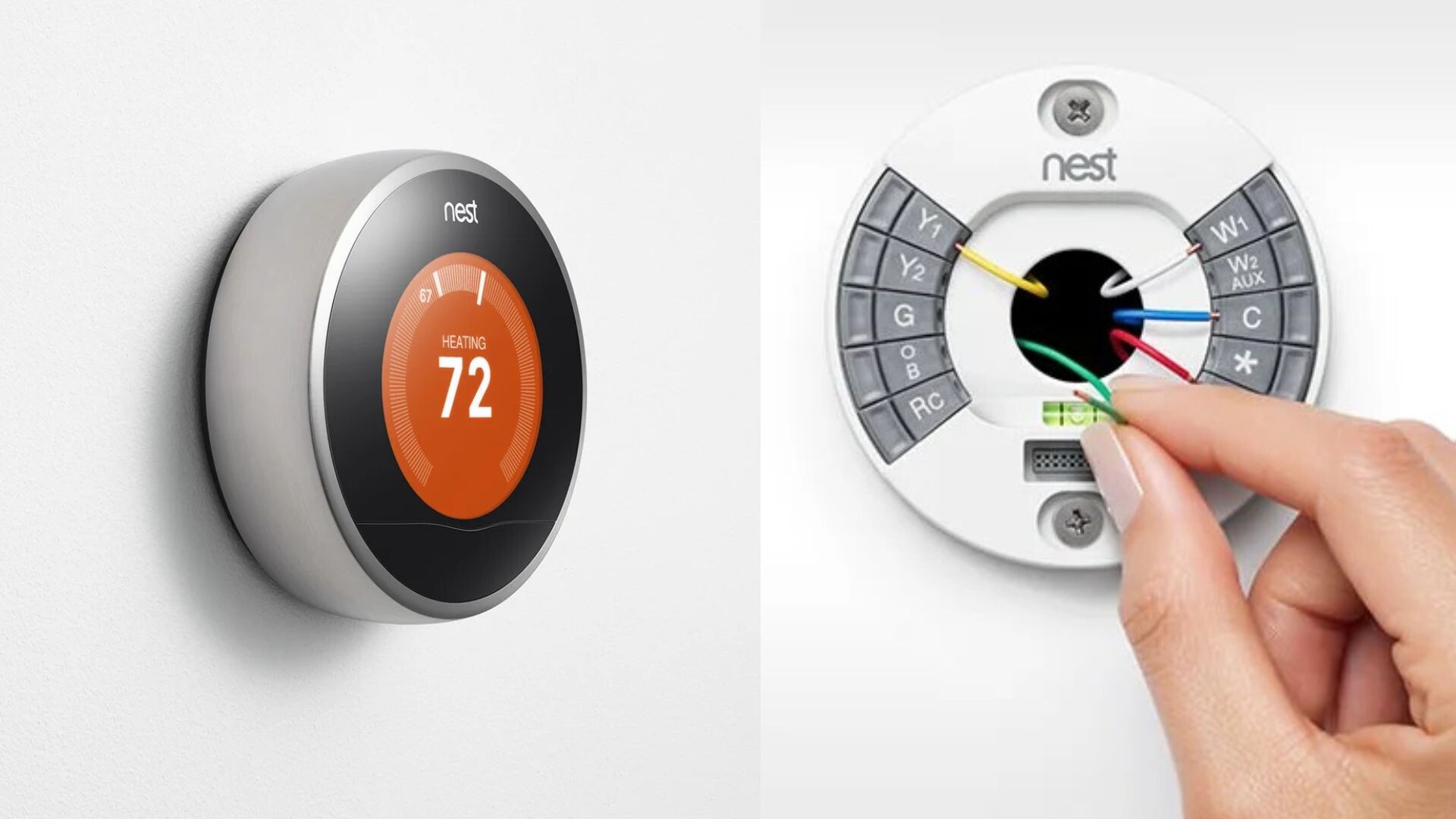
Turn off the power at the breaker. Remove the thermostat display from its base. Carefully grip the ring and pull towards you.
Check each wire installed on the thermostat base. Remove one wire at a time. Inspect it. Make sure it is straight and has about 1 cm of exposed copper wire . Ensure the wire is clean. It should not be corroded or have paint on it.
Insert the wire fully back into the Nest connector. Press down on the connector button. Make sure the button stays pressed down. Repeat this for all wires.
The Nest thermostat requires 18 to 22 gauge solid-core copper wires. Stranded wires will not work. If you have stranded wires, you need to contact an HVAC technician.
A Nest Community user with a gas fireplace had an E74 error after installing a 3rd-gen Nest Learning Thermostat. They confirmed the wire was properly installed and there was 23V at the wire. The fix that worked involved checking the connection on the HVAC control board and using a voltmeter.
Step 5: Charge the Thermostat
If your thermostat battery is drained, it cannot communicate with the system. The display might appear dead. In some cases, the thermostat shows a low battery warning. Other times, it simply won't turn on.
Remove the display from the base. Charge it using a USB cable for at least 10 minutes. Newer Nest thermostats use micro USB. Plug it into a phone charger, not a computer port. A computer port might not provide enough power.
After charging, reattach the display to the base. This should give the thermostat enough power to turn on. It might now show a message that can help you troubleshoot the problem.
Step 6: Check the Breaker and Utility Box
Go to your breaker box. Check if any breakers are tripped. If the AC breaker is off, flip it back on.
Look for an energy savings box near your electric meter. Some utility companies install these boxes. They cut power to the AC during peak demand times. They can trigger an E74 error. If you find one, wait for peak hours to end. The error should disappear after an hour or two.
What to Do If the Error Returns?
Intermittent E74 errors are frustrating. I have seen cases where the error disappears and then comes back. A Nest Community member reported that his two-wire heat-only thermostat showed an E74 error frequently.
The issue would resolve spontaneously. He would get heat, but the error kept reappearing. The problem often goes back to the system itself. It is not the thermostat. It is the HVAC system struggling to deliver power.
Consider calling an HVAC professional. They can check your system more thoroughly. They can check the transformer. They can verify the voltage across the Rh and G wires. A reading of 20 to 30 volts is normal. Below that indicates a system problem .
Advanced Troubleshooting
If the basic steps do not work, try these advanced checks.
Check the voltage on the wires using a multimeter. A heat-only system often has two wires. One is connected to Rh and the other to W1. The voltage should be between 20 and 30 VAC.
A Nest Community member reported that their E74 error occurred even with 28V on Vin and 37V on Voc. They could perform a test heat cycle and the boiler would turn on. The error code would still appear. The installation was new and had never worked correctly.
If you have a similar situation, the issue could be compatibility. Not all systems work with Nest thermostats, even if the compatibility checker says they do. Contact Nest Pro support or a local HVAC technician. They can run proper diagnostics.
Another user found that the problem was a DC transformer instead of an AC transformer. The Nest thermostat needs AC power. A DC transformer will cause the E74 error.
Prevention
The best way to avoid the E74 error is to maintain your HVAC system. Change the air filter every 1-3 months. Clean the condensate drain once a year. Schedule an annual HVAC inspection before summer starts.
These small steps can prevent the error from appearing in the first place. They will also help you understand why nest thermostat e74 wire error fix is often a sign of a bigger system issue.
FAQ's- About - No Power to Rh Wire Nest E74
What does No power to Rh wire Nest E74 mean?
The E74 error code means your Nest thermostat is not detecting power on the Rh wire. The Rh wire is the power wire for your heating system. Without power, the thermostat cannot operate.
Can I fix Nest E74 error myself?
Yes, in most cases. You can check the air filter, clear the condensate drain, check the HVAC fuse, and reseat the thermostat wires. Always turn off the power at the breaker before touching any wires.
Why does Nest e74 error intermittent happen?
Intermittent E74 errors usually happen because the power to the thermostat is unstable. A loose wire, a failing transformer, or an energy savings box can cause the error to appear and disappear.
My Nest says No power to Rh wire but the AC works. What now?
This usually means the problem is with the heating side of your system or the R wire connection specifically. Check the Rh wire connection. If it is secure, the issue might be with the HVAC control board or a blown fuse.
Do I need an HVAC professional for the E74 error?
If you have tried all the steps mentioned above and the error persists, you need to call a professional. The problem might be with the transformer, the control board, or other electrical components.