
I spent an hour last week trying to pair a new set of earbuds to my Pixel 9a. They showed up in the list, I tapped them, and nothing happened. No error. No explanation. Just silence.
That frustration is exactly why Google quietly added a Google Pixel Bluetooth diagnostics tool. It doesn't fix the problem for you. But it tells you what's actually wrong, which is more than most phones do.
Here's how to use it, plus the real fixes that work when the tool points you in the right direction.
The Hidden Tool You Probably Missed
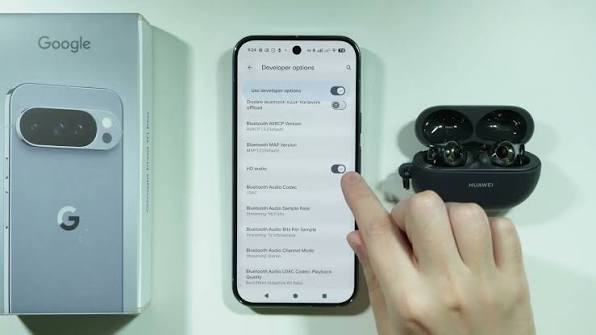
Google rolled this out in an update to the Pixel Troubleshooting app, version 1.0.885948717. It's available on Pixel 6 and newer models.
You won't find it in the main Settings menu unless you know where to look. Open Settings, tap "Connected devices," then look for "Bluetooth diagnostics". Some phones also route to it through Settings > Device health and support.
Read Also: Google Pixel 9 Pro XL Review: Stunning Display And Battery Life Tested
The tool works by running a test connection to your paired accessory. Pick your device from the list. Choose the problem you're having can't find it, drops connection, or audio issues. It runs a series of checks and then tells you whether the issue is on the phone side or the accessory side.
If it finds a problem, it suggests fixes. Sometimes that's as simple as re-pairing. Sometimes it tells you to contact the manufacturer. Either way, you stop guessing.
What to Do When the Tool Says "Re-pair"?
Forget the device first. Go to Settings > Connected devices. Tap the gear icon next to your Bluetooth device. Tap Forget. Then put your accessory back into pairing mode and connect fresh. This clears corrupted pairing data that builds up over time.
If re-pairing fails, the next step is clearing Bluetooth storage. This is more aggressive. Go to Settings > Apps > See all apps. Tap the three-dot menu and select "Show system." Find Bluetooth and Bluetooth Legacy. For each one, tap Storage & cache, then Clear storage.
This wipes every saved Bluetooth device. You'll have to pair everything again. It's annoying. It also fixes a surprising number of stubborn connection problems.
The Pixel 9A Problem That Isn't Your Fault
If you're dealing with Google Pixel 9a Bluetooth issues specifically, you're not alone. Users on Google's support forums report random disconnections with wearables like Garmin watches.
The connection drops multiple times per day. Sometimes an "unexpected error" pops up. Restarting Bluetooth fixes it temporarily. The culprit appears to be Android's battery management.
You Must Also Like: How to Activate eSIM on Google Pixel: Easy Guide
It closes background apps too aggressively. If your Bluetooth device relies on an app running in the background—like Garmin Connect—the phone kills it. Your connection dies with it.
The fix: go to Settings > Apps > [your device's companion app] > Battery > Battery usage. Set it to "Unrestricted." Also grant the app "Nearby devices" and "Location" permissions. Then restart both your phone and your accessory and pair them again.
I tested this with a friend's Garmin. The drops stopped for two days. Then Android updated and they came back. It's not a permanent fix. It's a patch until Google addresses the underlying issue.
When Bluetooth and Wi-Fi Both Die (The Scary One)?
This is the nightmare scenario. Your Wi-Fi stops working. Bluetooth crashes in a loop. Restarting doesn't help. Factory reset doesn't help.
Reports from early 2026 describe exactly this on Pixel 8 Pro, Pixel 10, and Pixel 10 Pro XL after a January update. Users couldn't even search for Wi-Fi networks. Standard fixes—reboots, network resets—did nothing.
A deeper investigation into a similar issue on Pixel 8 Pro found something worse. The Wi-Fi chip loses its connection to the processor when it wakes from sleep. Heat makes it worse. Above roughly 30°C battery temperature, the failure rate spikes. Below 28°C, it often works fine.
One workaround surfaced: a free app called Wi-Fi Guardian. It sends a tiny packet to your router every 0.2 seconds. This keeps the chip awake so it never enters the fragile sleep-wake cycle where it fails.
It doesn't fix the hardware. It just avoids the trigger.
If you're facing Wi-Fi and Bluetooth not working Pixel 8 Pro symptoms, try the app before you throw the phone in a drawer. It's not a cure. It's a workaround. But a working phone is better than a brick.
The Feedback Loop That Actually Gets Google's Attention
Google reads support forum feedback. They don't read every post. But they track patterns.
If you've tried everything and your Bluetooth still fails, send feedback directly from your phone. Go to Settings > About phone > Send feedback about this device.
Start your message with #bluetooth. Include system logs by tapping the "Account and system information" link before you submit.
This doesn't fix your phone today. It does feed into the data Google uses to prioritize software fixes. The January Wi-Fi/Bluetooth bug on Pixel 8 Pro and Pixel 10 took weeks to surface in reports. More feedback means faster acknowledgment.
The Final Thoughts
Start with the diagnostics tool. It's free, built-in, and tells you if the problem is your phone or your headphones. If it says re-pair, re-pair. If it says clear storage, clear storage.
If you're on a Pixel 9a and your wearable keeps dropping, check the battery settings for the companion app. That's the most common fix I've seen work for people.
If Wi-Fi and Bluetooth are both dead, try Wi-Fi Guardian before anything drastic. And if nothing works, send feedback with logs. The fix might come in a future update. It just won't come today.
Bluetooth problems are the worst kind of tech frustration because they're invisible. The diagnostics tool makes them visible. That's half the battle.